
Step 1
Get the ISO
The image is a remastered Ubuntu 24.04 Server ISO. The boot entry already points at the NoCloud seed that sits on the disc, so the installer never asks for a language, a disk or a user. Build it from the repository, or download the release asset if you are on a tagged release:
git clone https://github.com/matthias1232/nestbox.git
cd nestbox
./scripts/iso/build_iso.sh \
  --base ~/Downloads/ubuntu-24.04-live-server-amd64.iso \
  --out  dist/nestbox-24.04-slim.iso \
  --seed dist/seed
The script prints the final size and SHA-256. Keep the checksum: it is the quickest way to tell a truncated upload from a broken boot.
The Image Creator in the appliance renders the same seed from a form: hostname, network mode,
UI port, TLS mode and the nests to preseed. Download the bundle and point --seed
at its seed/ directory — no YAML editing needed.
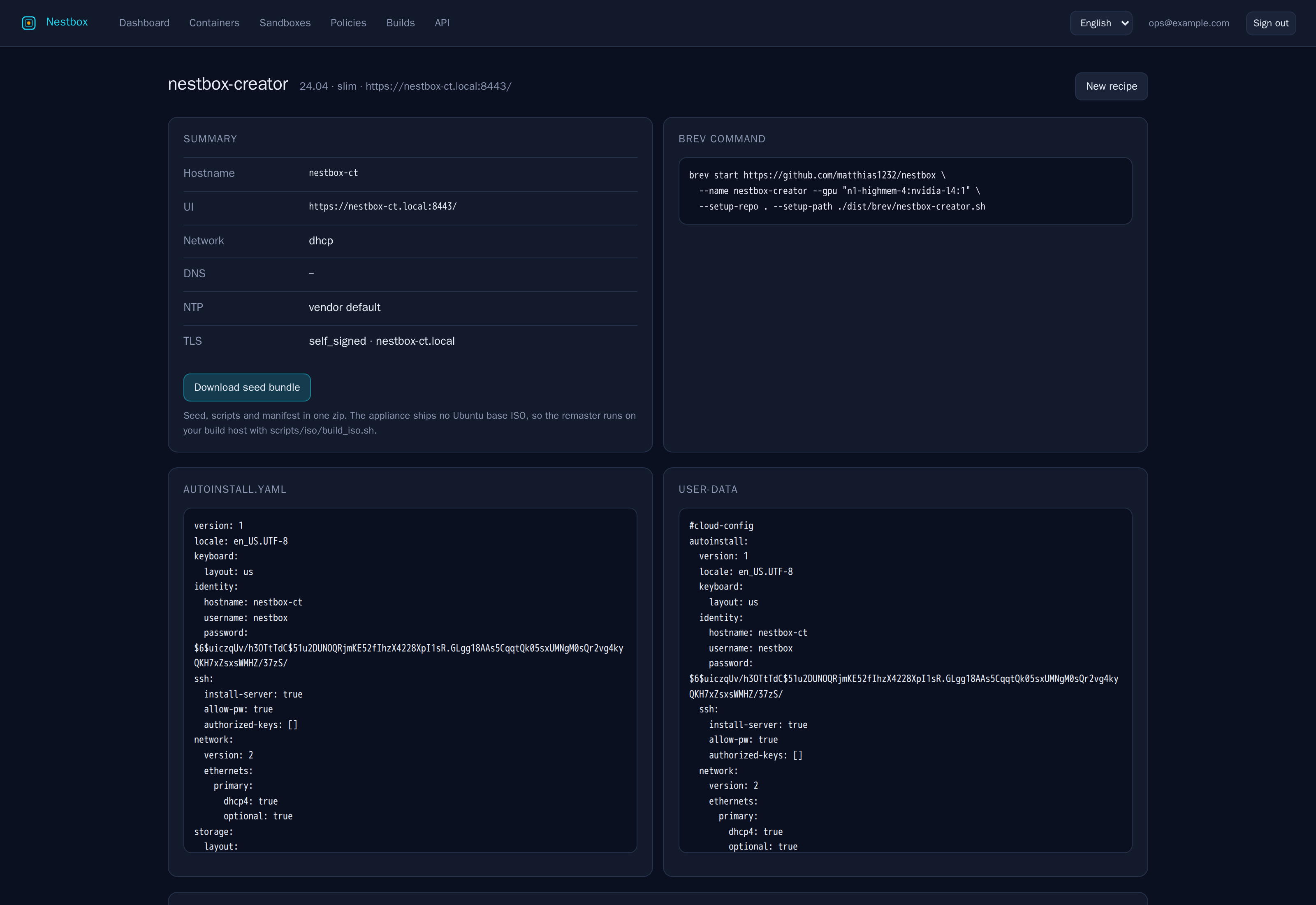
nestbox-ct.local, and one preseeded nest on port 8080.One image, three series. The same seed format works for Ubuntu 22.04, 24.04 and 26.04. Pick the base ISO for the series you want; the payload is identical.
Virtualisation integration. On first boot Nestbox detects KVM/QEMU (including Proxmox) and enables the QEMU Guest Agent. VMware installs Open VM Tools. A physical machine gets neither service. This makes the IP address and controlled shutdown visible to the hypervisor without changing the appliance workflow.
Step 2
Upload it to Proxmox
Open the web UI at https://<node>:8006 and sign in as a user with
VM.Allocate and Datastore.AllocateSpace on the target node.
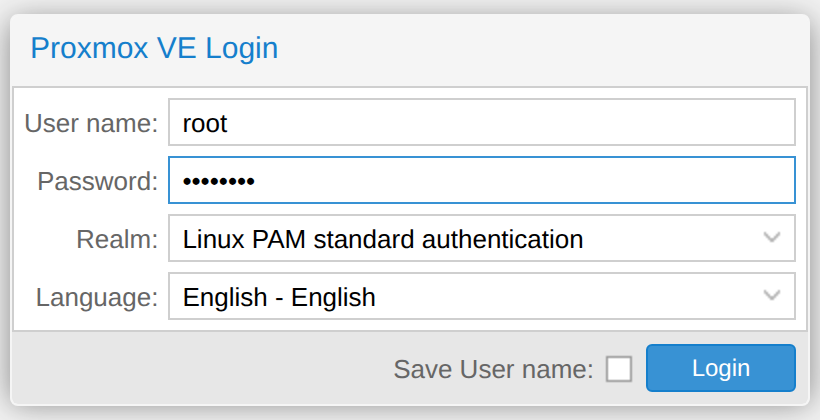
Linux PAM for a local root account.
Select the datacenter, open local → ISO Images and choose Upload.
Proxmox stores the file under /var/lib/vz/template/iso/; the wizard later shows it as
local:iso/nestbox-24.04-slim.iso.
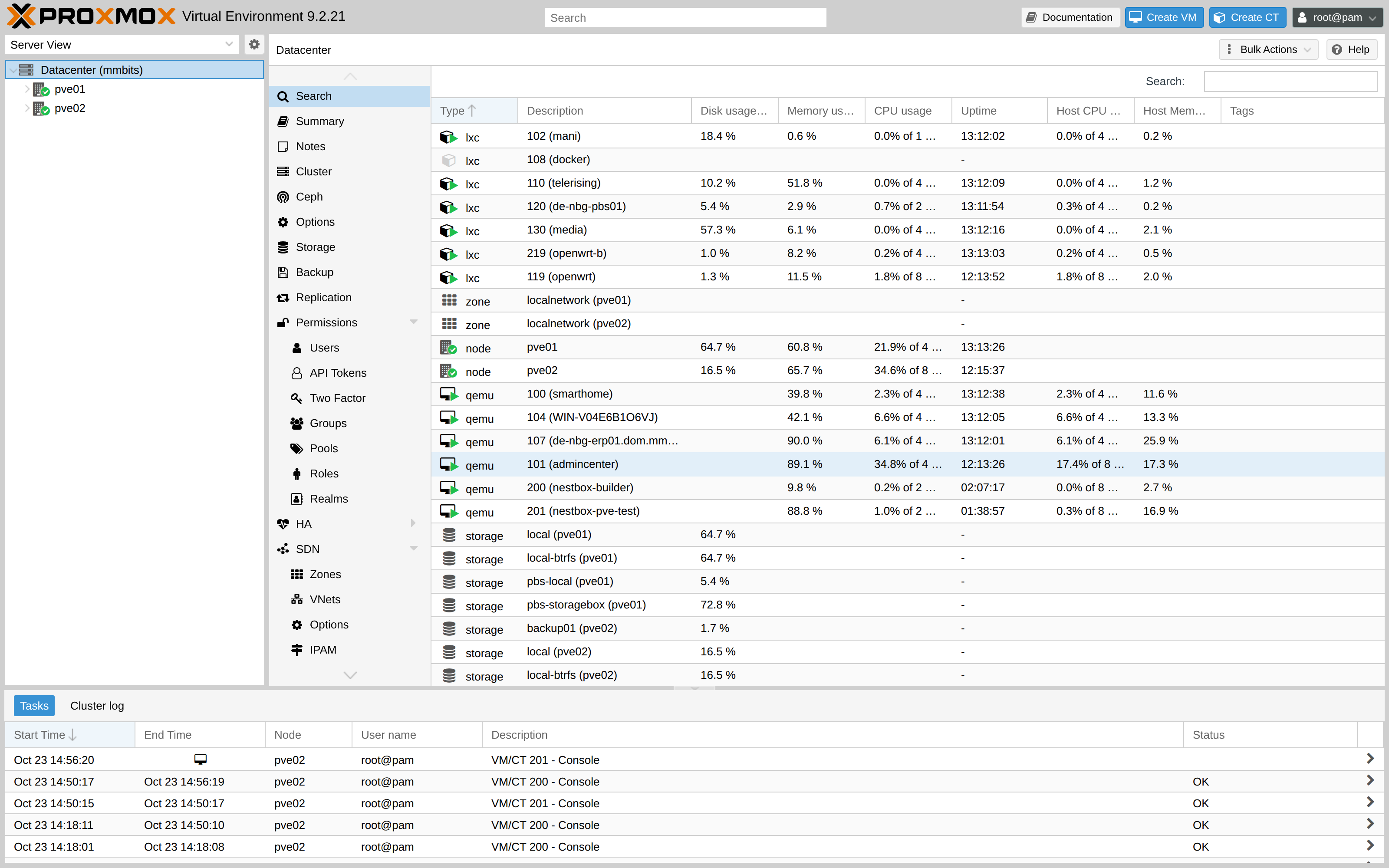
local storage holds ISO images, local-btrfs holds the disks.
The node summary is the second half of the check: it lists the same storages, so you can confirm
that local has room for a 3.1 GB image before the upload starts.
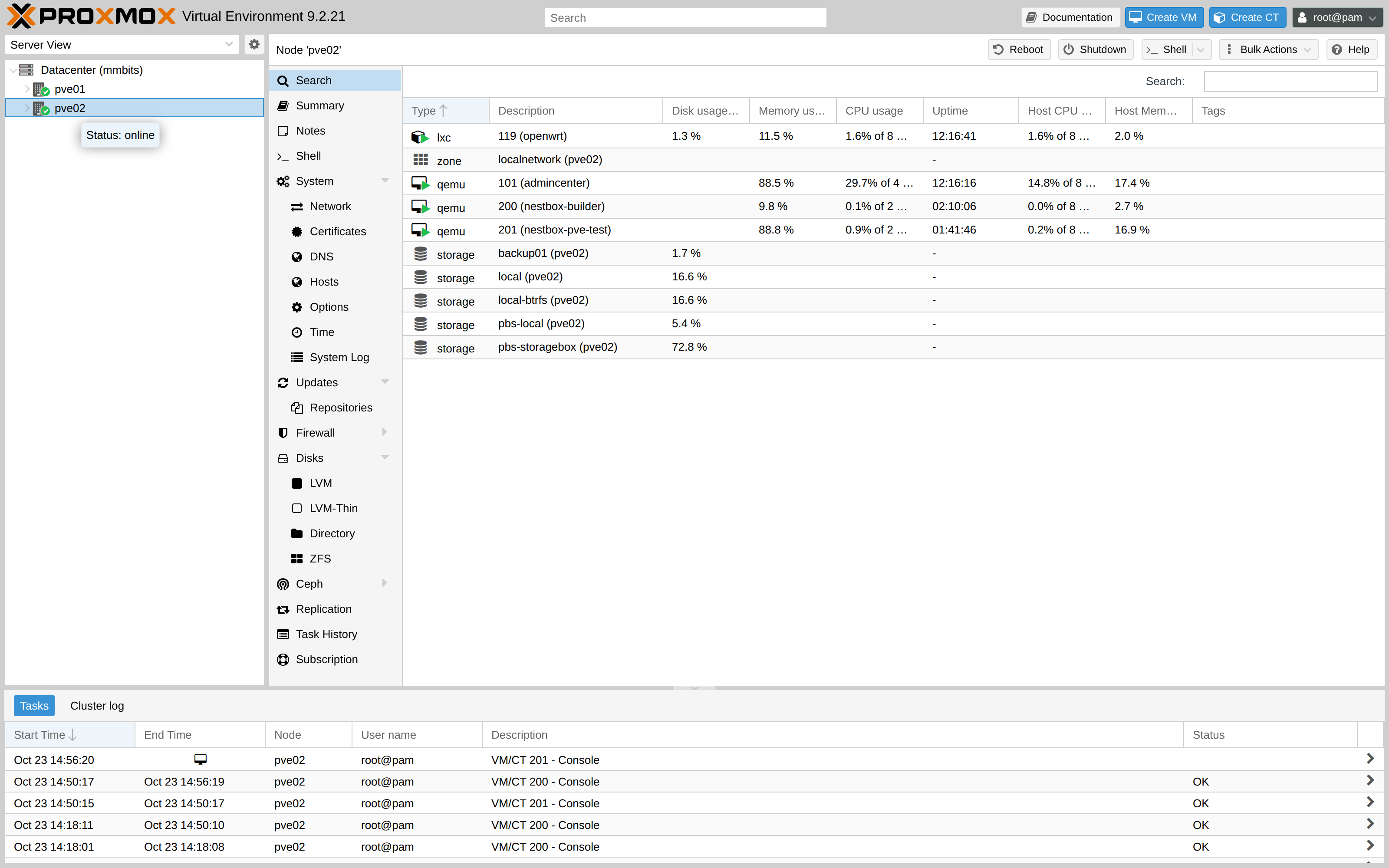
pve02 with its guests and storages. Nothing has to be installed on the node itself.Step 3
Create the virtual machine
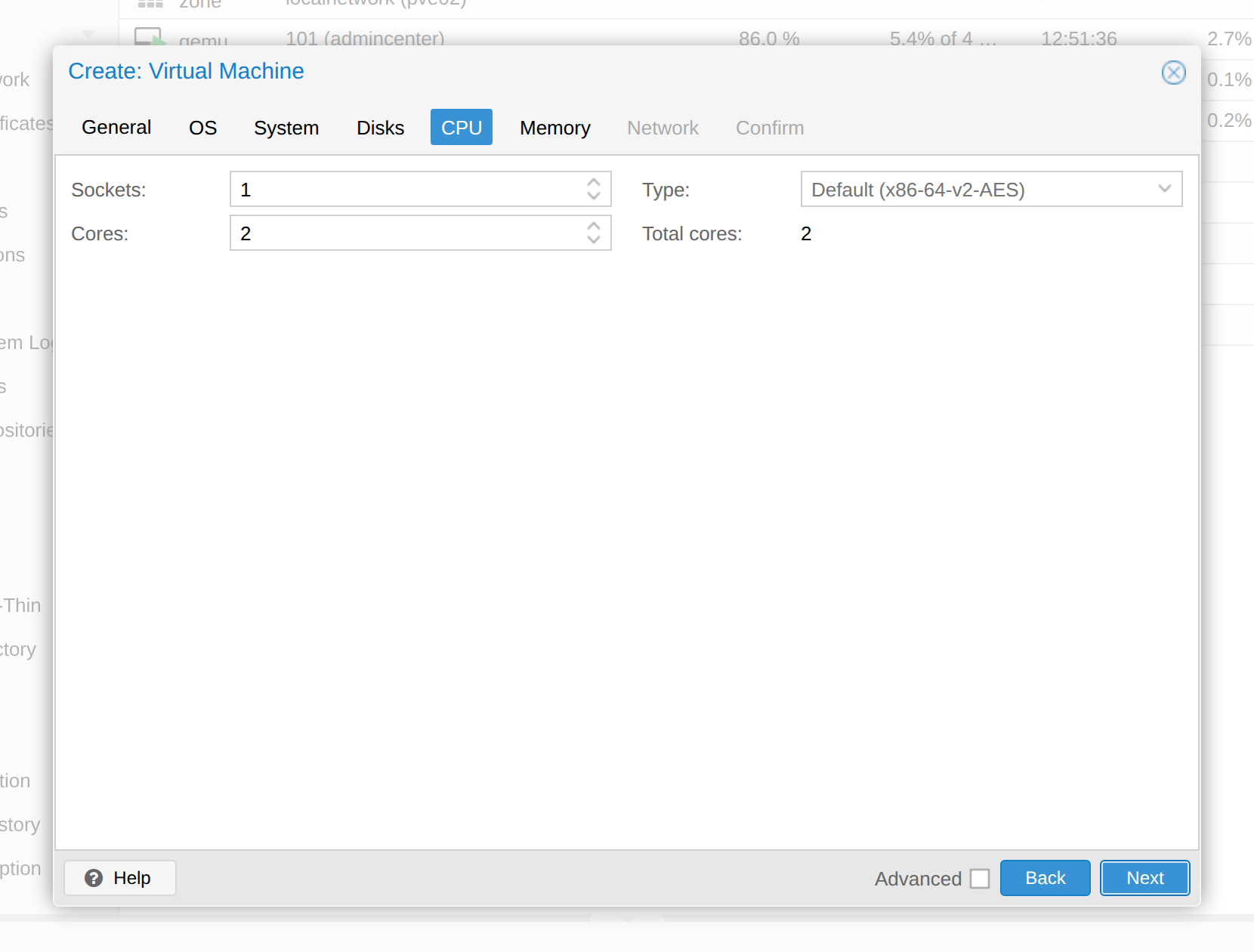
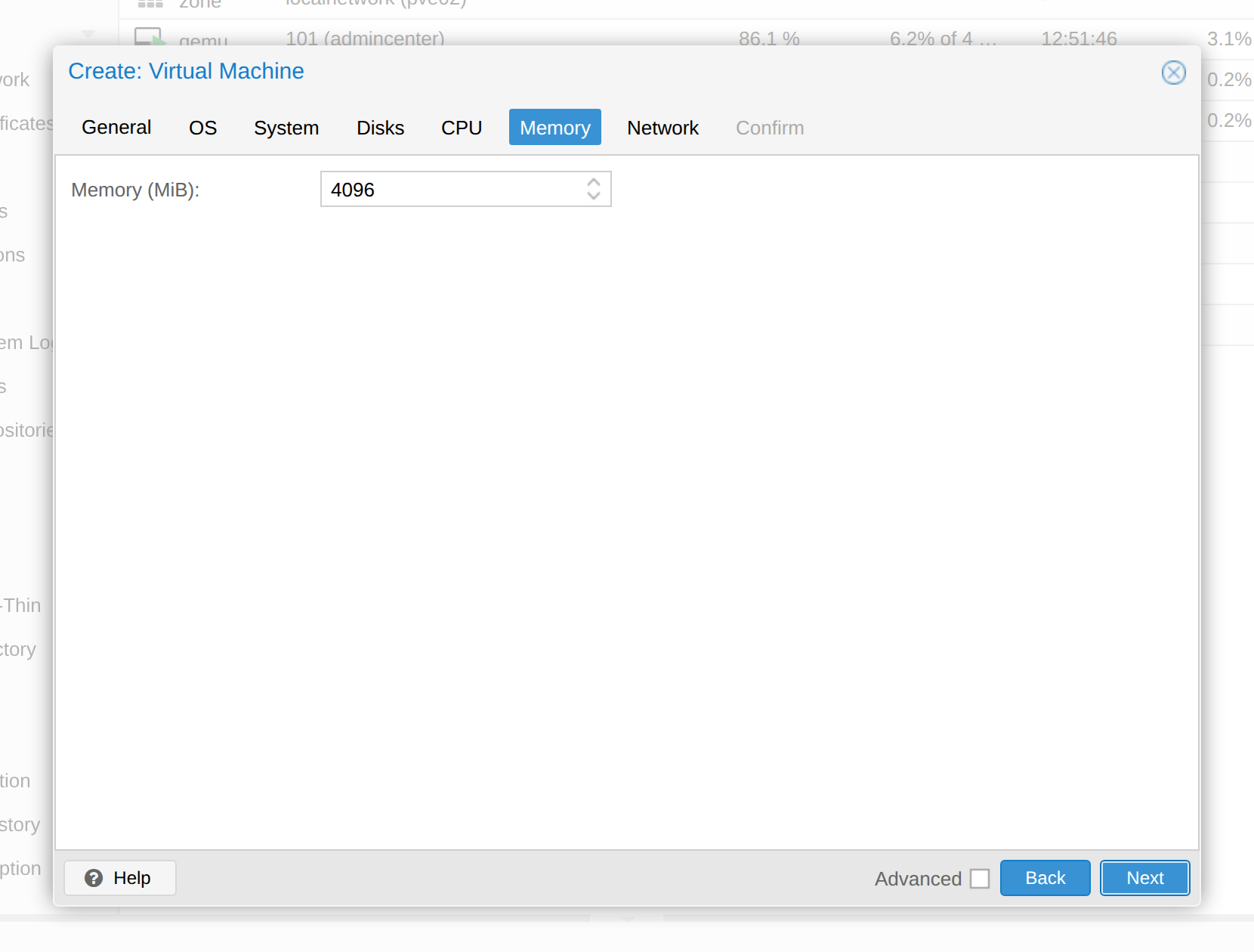
Choose Create VM in the top right. Give the guest an ID, a name and the node you uploaded the ISO to. The remaining tabs are the defaults plus two changes: the ISO as CD/DVD image, and your disk storage.
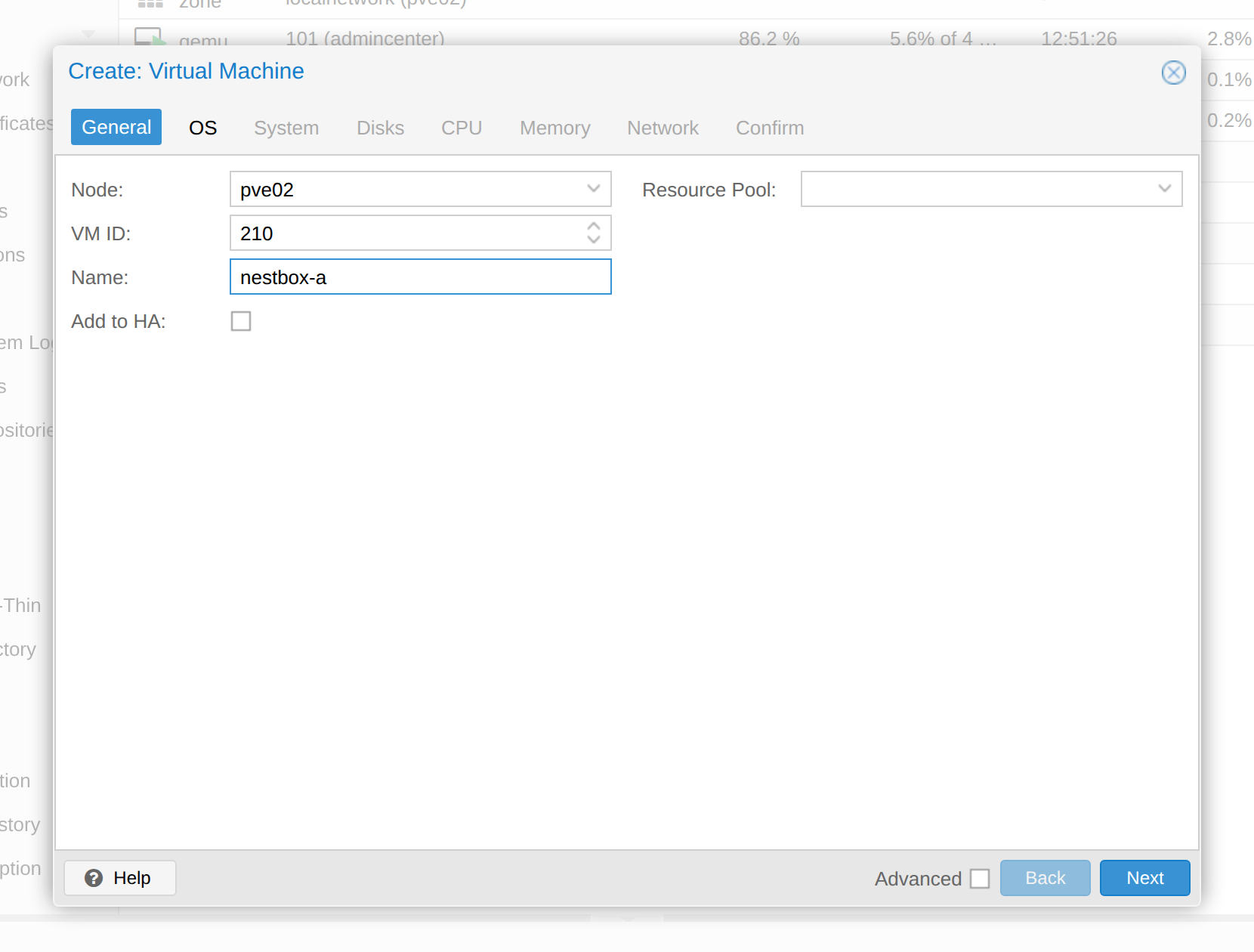
pve02, VM ID 210, name nestbox-a.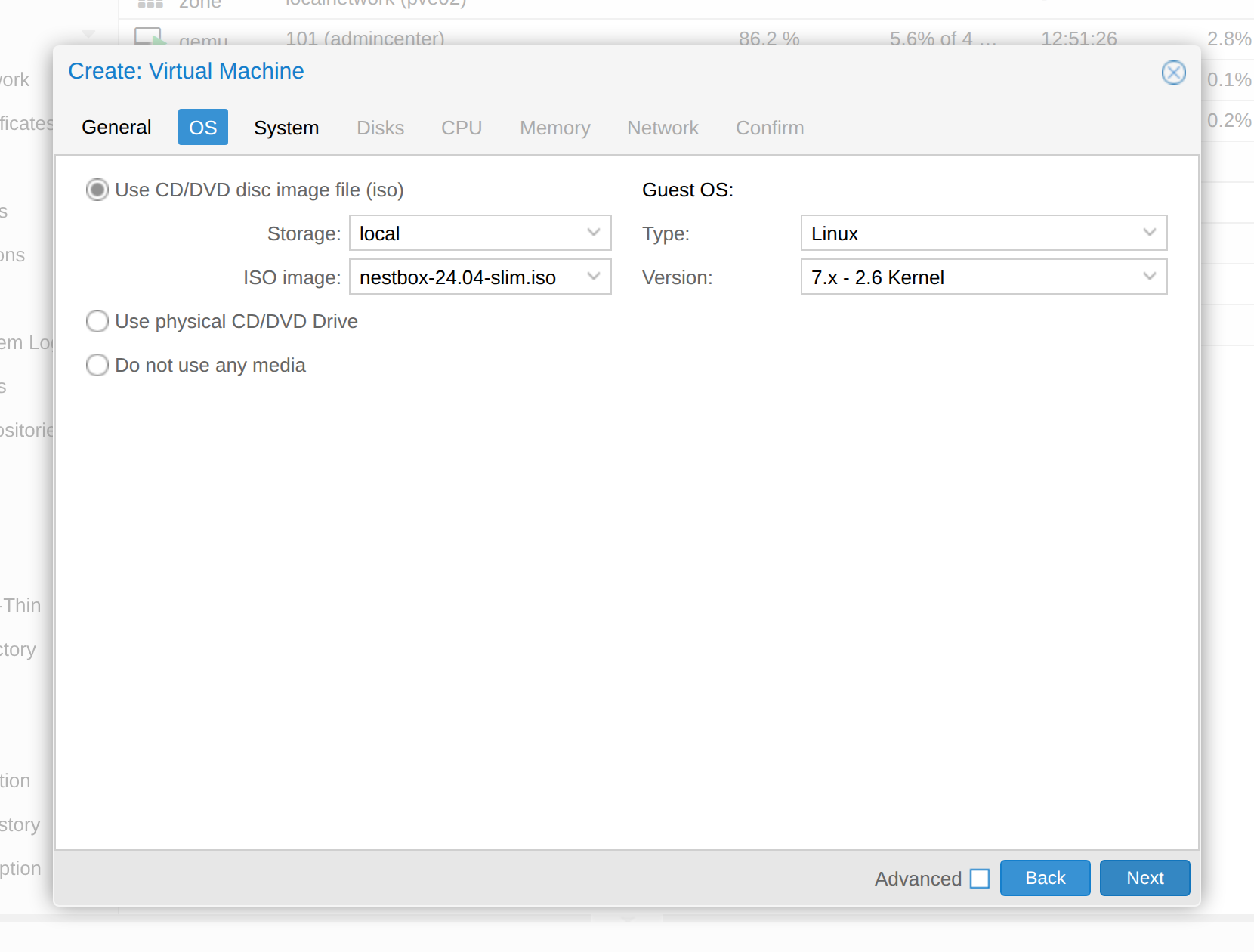
local, ISO image
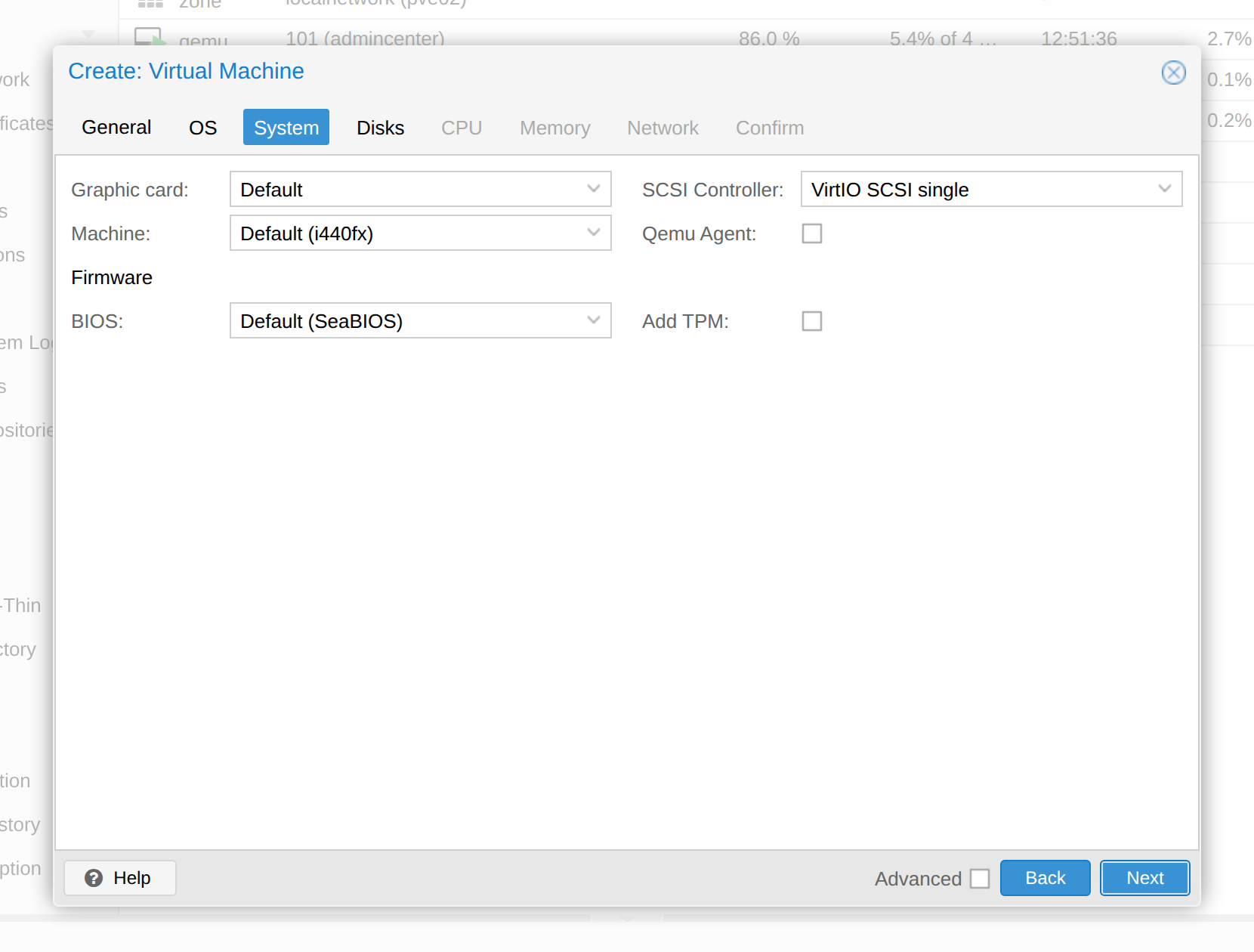
nestbox-24.04-slim.iso, Guest OS Linux / 7.x - 2.6 Kernel.Leave System at its defaults (SeaBIOS, VirtIO SCSI single): the ISO boots in both BIOS and UEFI mode, and the installer sets up a BIOS-bootable disk.
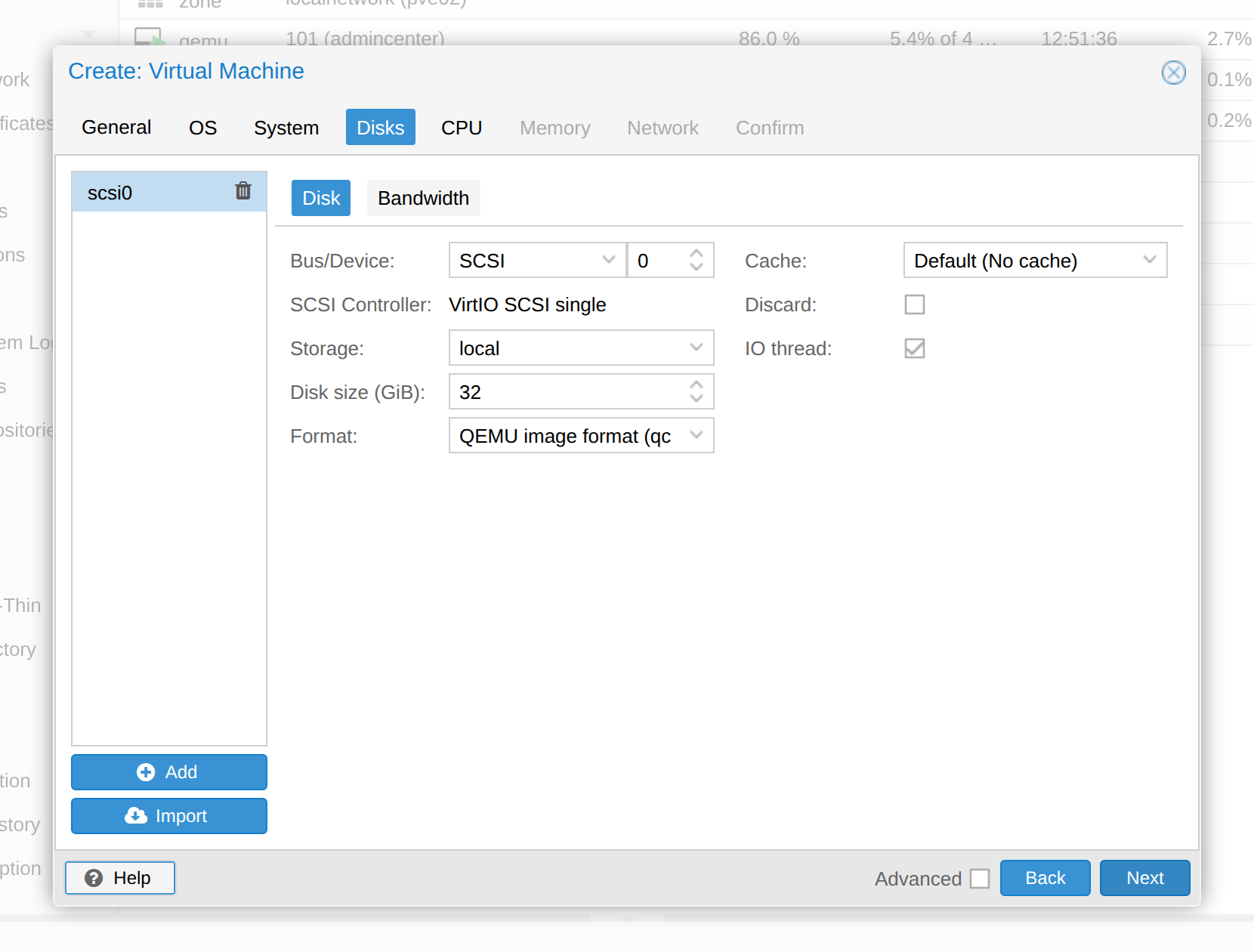
On Disks pick the storage that should hold the system volume and give it 60 GB. The
wizard proposes 32 GB on local; on a node with a btrfs pool, switch to it before you hit
Next. 60 GB leaves room for the controller image, the PostgreSQL volume and a few nests.
Network must be a bridge the guest can reach a DHCP server on — usually vmbr0
with the VirtIO model. Keep the firewall setting off for the first boot; otherwise Docker's own rules and
the Proxmox firewall fight over the same chains.
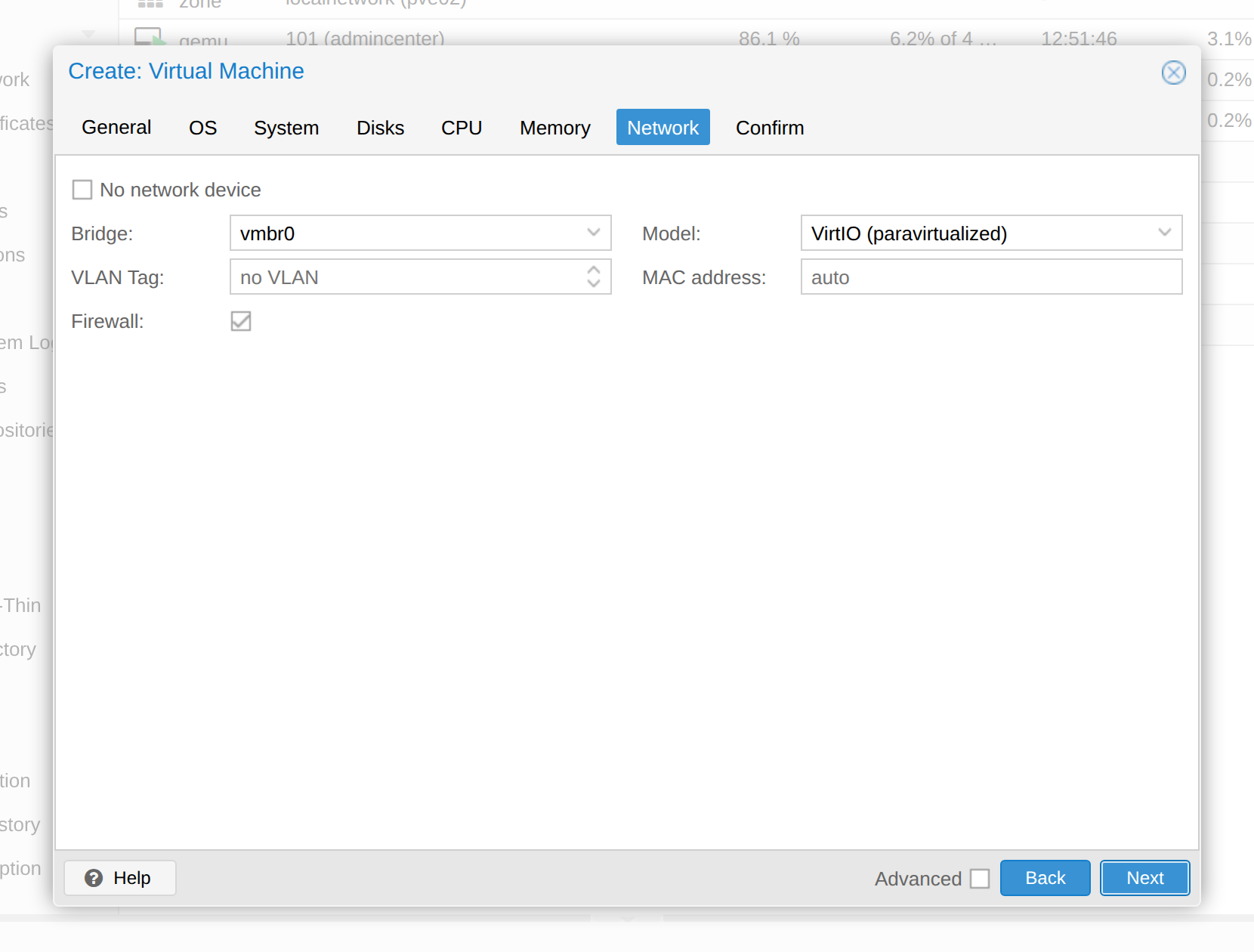
vmbr0, no VLAN tag.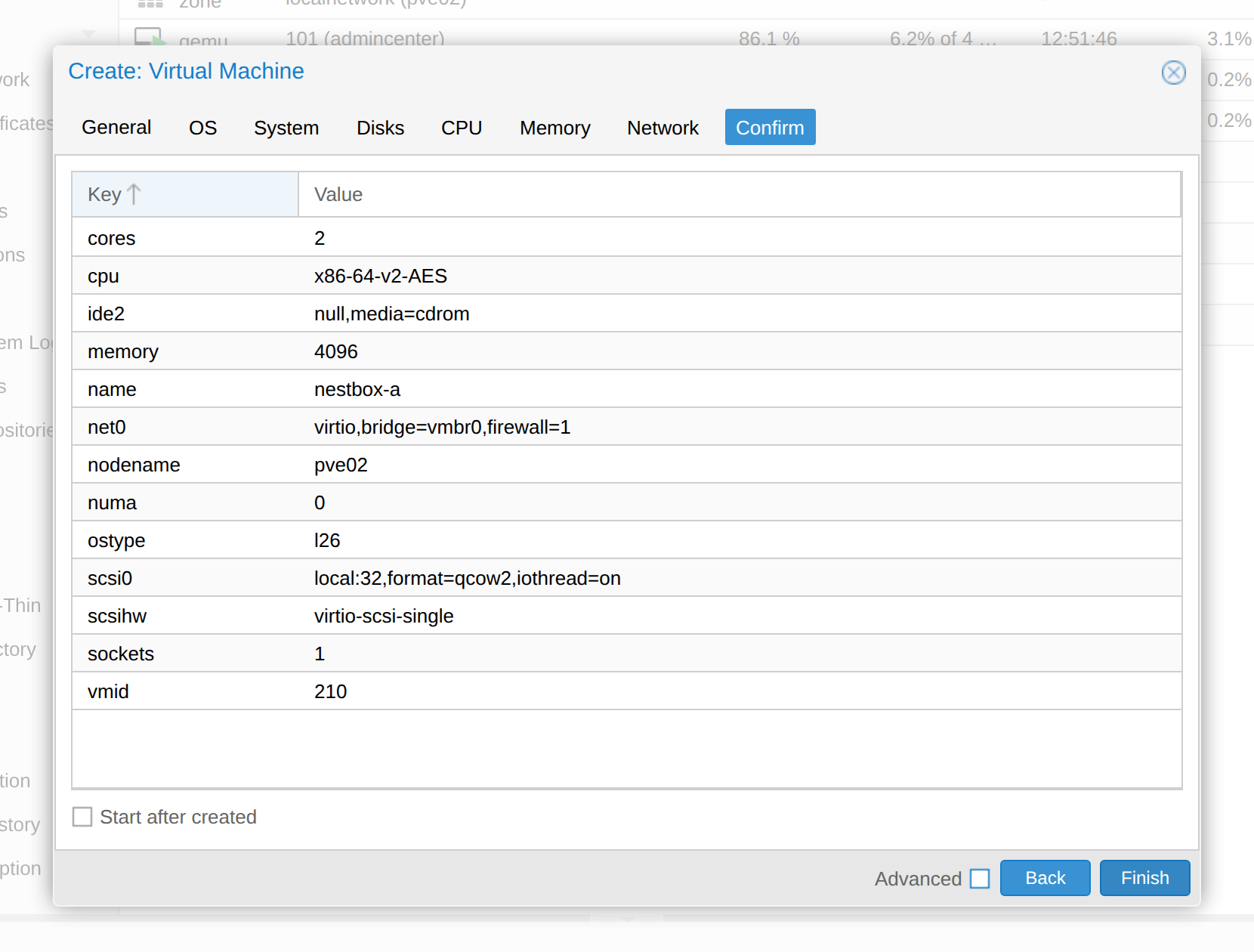
If you want to check the result afterwards, open the guest's Hardware tab. It shows the two lines that matter: the CD/DVD drive pointing at the ISO, and the disk on the storage you picked.
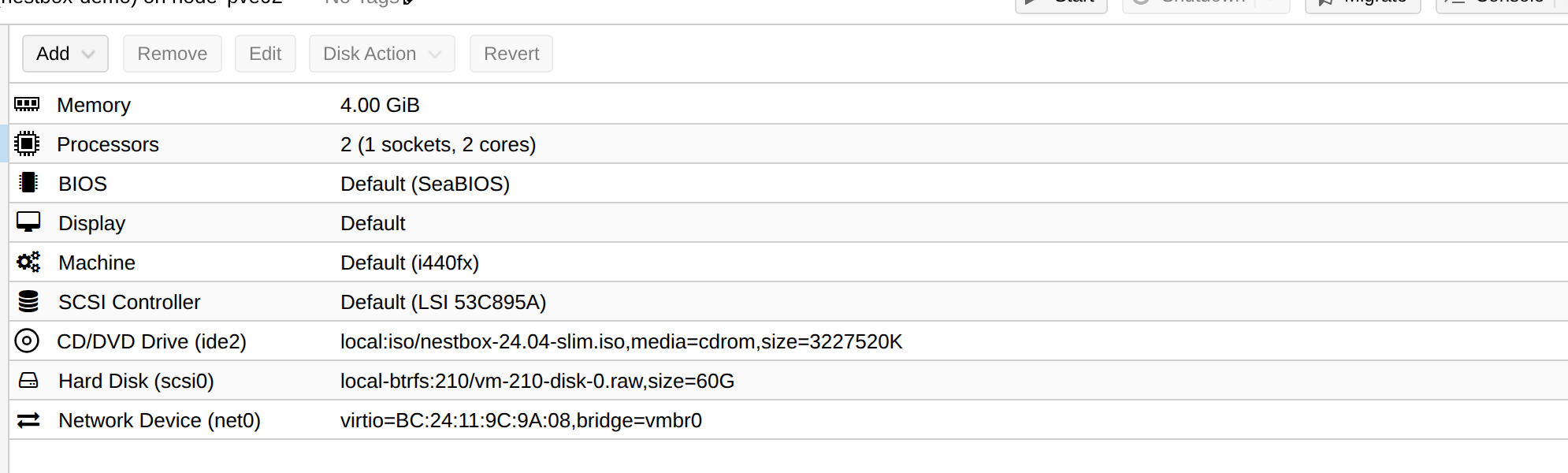
ide2 with the ISO, scsi0 on
local-btrfs, and a VirtIO NIC on vmbr0.Step 4
Run the unattended install
Start the VM and open its console. GRUB boots straight into the installer, and from there the machine works on its own: partitioning, the base system, OpenSSH and the appliance payload. Expect a reboot after five to seven minutes.
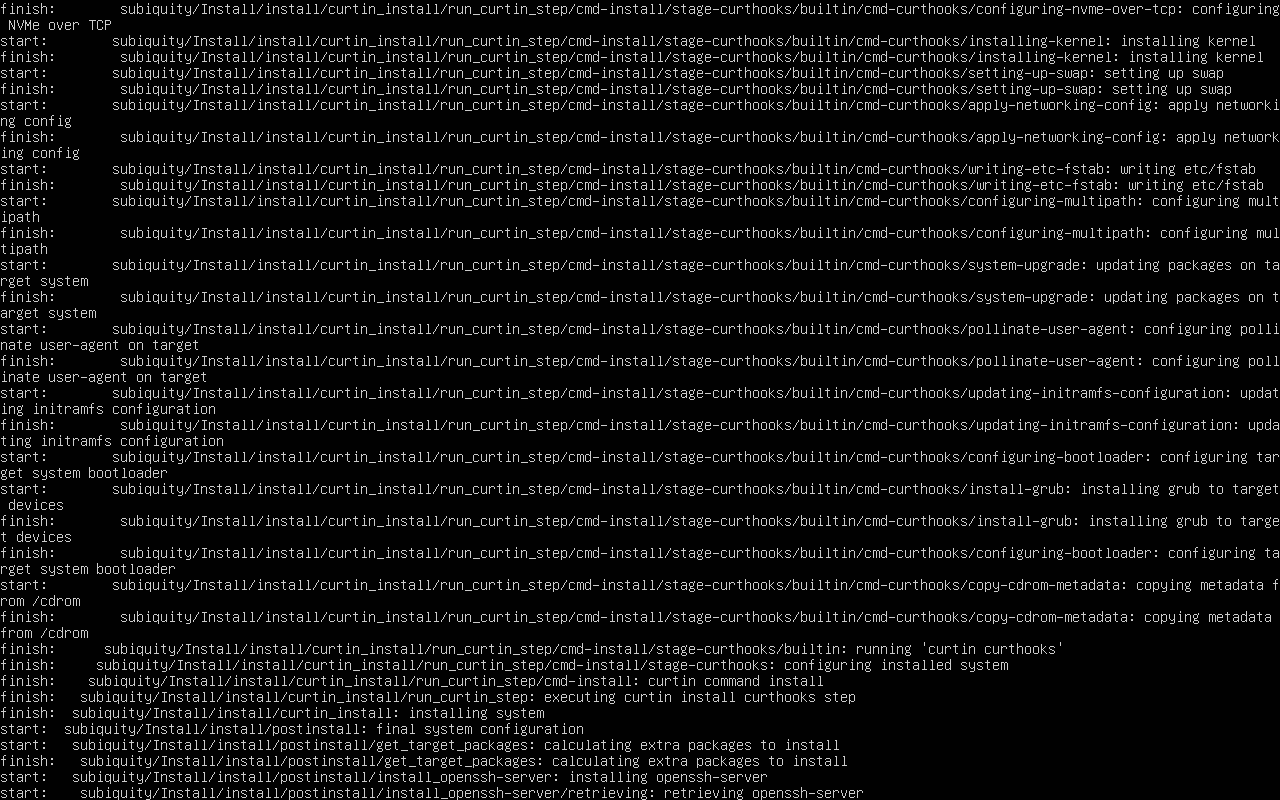
When the console returns to a login prompt, the install is done. The hostname you chose in the
wizard is already set, and the nestbox account is the one from the answer file.
Nothing from the network. The installer only needs the disc. Runtime packages, Docker and the controller image are fetched on first boot, so an offline mirror in the datacenter cannot break the install.
Step 5
Wait for the first boot
The first boot does the slow work: it installs docker.io and docker-compose-v2,
writes /etc/nestbox/nestbox.env, creates a self-signed certificate for the appliance
hostname, then builds and starts PostgreSQL and the controller. This is the one step that needs
outbound HTTPS.

nestbox login above it is the operating-system account from the wizard.Two commands tell you whether it is finished:
systemctl status nestbox-firstboot.service
sudo tail -f /var/log/nestbox/firstboot.log
The service ends with [nestbox] first boot complete, and the same summary is written to
the console once, so you do not have to go looking for it:
Nestbox is ready.
  web UI: https://192.168.55.210:443/
  admin:    admin@nestbox-a.local
  password: …
  password file: /var/lib/nestbox/admin-password.txt
The password file is readable by root only. The summary is also in
/var/log/nestbox/firstboot.log and in the journal of the unit.
Step 6
Sign in to the dashboard
Open the URL from the console. The certificate is self-signed on purpose — there is no public name yet — so the browser warns once. Accept it for this host and continue.
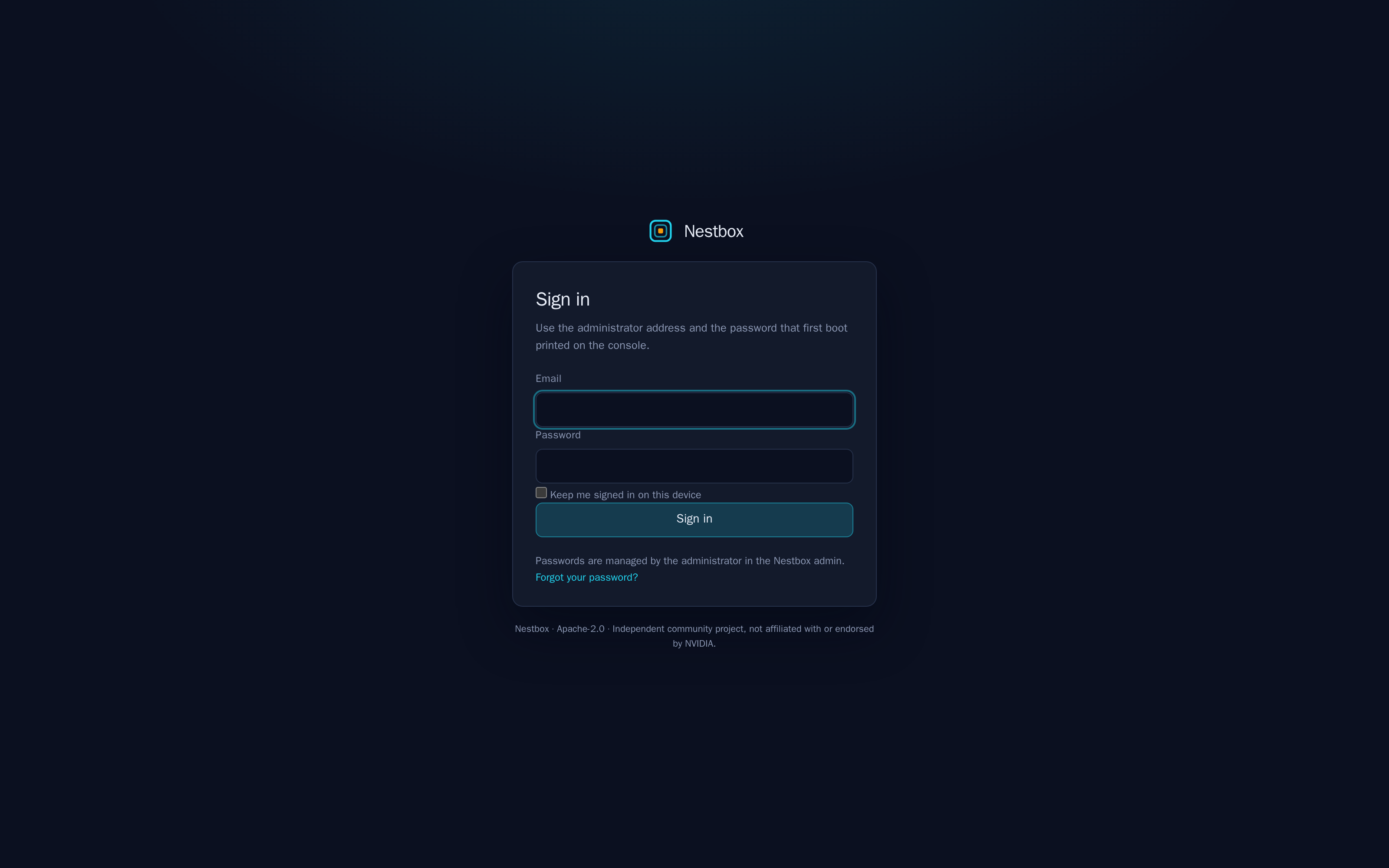
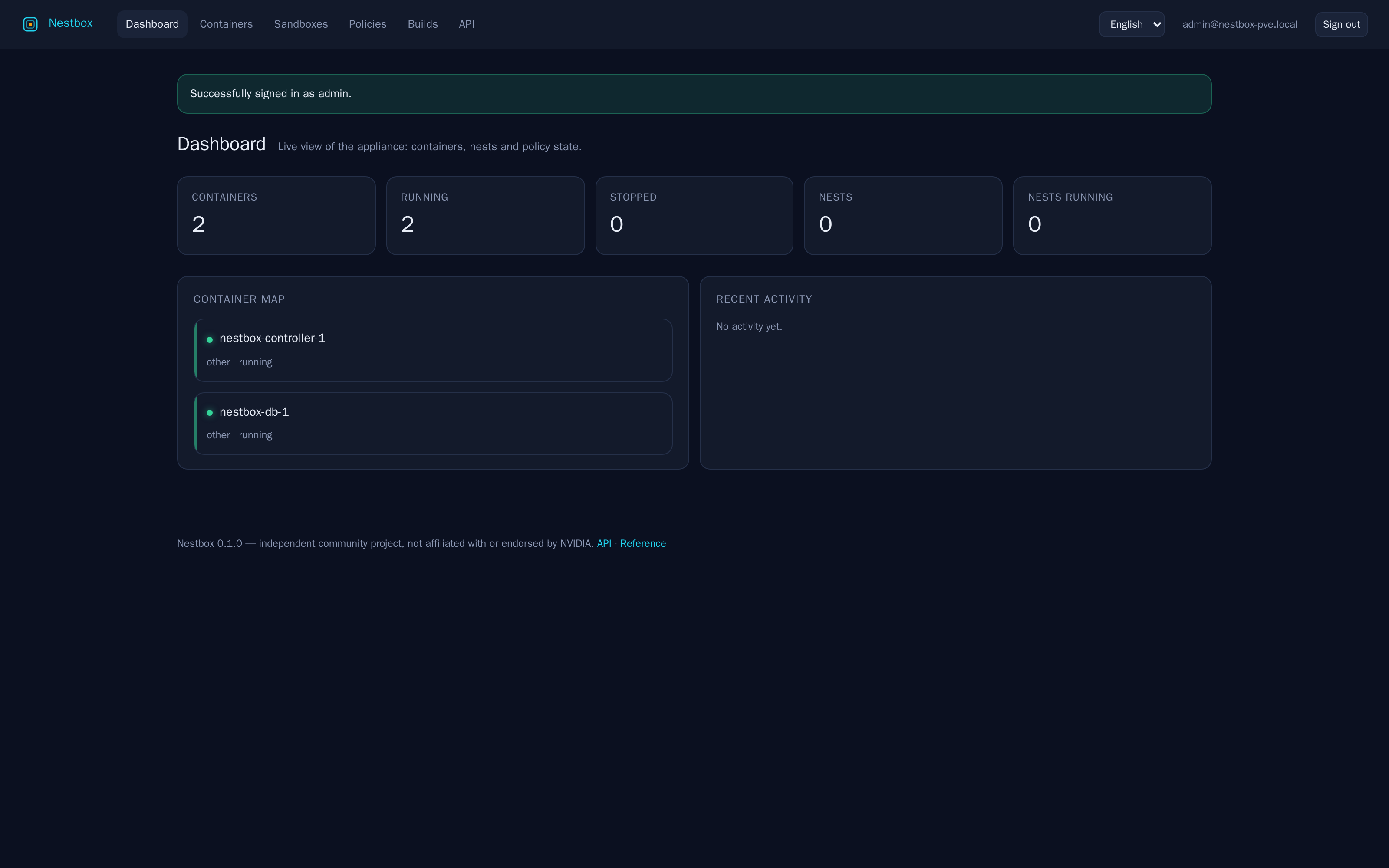
Sign in with the administrator address and the password from the console. The dashboard shows the node, the running containers, the packs you can start and the API schema.
Step 7
Next steps
- Change the admin password after the first login, or set
NESTBOX_BOOTSTRAP_ADMIN_PASSWORDin/etc/nestbox/nestbox.envbefore the first boot. - Replace the certificate with a real one once the hostname resolves: put
cert.pemandkey.peminto/etc/nestbox/tls/and restart the controller. - Create a nest from a pack. Each nest gets its own sandbox, its own policies and its own port.
- Read the API at
/api/docs/— the same schema the CLI and the UI use. - Back up the appliance: the database lives in the
dbDocker volume, the configuration in/etc/nestbox.
sudo docker compose \
  --env-file /etc/nestbox/nestbox.env \
  -f /opt/nestbox/compose/docker-compose.yml ps
Troubleshooting
When something does not line up
| Symptom | What to check |
|---|---|
| The installer shows the interactive menus | The stock Ubuntu ISO was booted. Use the Nestbox ISO, or add autoinstall ds=nocloud to the kernel line. |
| No address on the console | Bridge and VLAN of the VM, and whether the DHCP pool has room. Static addressing is a wizard option. |
| First boot takes forever | journalctl -u nestbox-firstboot -f. Without outbound HTTPS the Docker install and the image build cannot finish. |
https://… returns 400 |
The request reached Django over plain HTTP. Use the URL from the console, including the port. |
| Password lost | sudo cat /var/lib/nestbox/admin-password.txt, or recreate the admin from the compose project. |
| Port 443 is taken on the host | Set ports.ui to another port in the image wizard, for example 8443, before you build the ISO. |